
Hey there, students and non-tech pros! Whether you’re a high schooler drowning in lecture notes, a college student tackling research papers, or a professional like a teacher, writer, or marketer juggling reports and ideas, Google’s NotebookLM is about to make your life easier.
This AI-powered tool acts like a super-smart assistant, helping you summarize, organize, and turn your materials into audio podcasts, video slideshows, visual mind maps, or polished reports. No tech skills needed just a willingness to save time and stress!
This guide is written for 16–20-year-old students and non-tech professionals, with practical steps and examples to get you started. hear we will learn How to use Google NotebookLM for students and professionals
What is NotebookLM?
IF you’re a student with a stack of PDFs for a history project, or a marketer with a pile of client reports and web articles to review. Reading everything feels like a marathon. That’s where NotebookLM comes in! It’s a free tool from Google Labs that lets you upload your materials (up to 50 sources!) and uses AI to summarize, answer questions, and create outputs like audio, videos, mind maps, or reports.
It’s powered by Google’s Gemini AI, so it can handle PDFs, Google Docs, Slides, web URLs, and even audio files.
How to use Google NotebookLM
Unlike tools like ChatGPT, which might pull random info from the web (and sometimes get it wrong), NotebookLM only uses your uploaded sources, keeping things accurate and focused. Plus, your data is private—it’s not used to train the AI. It’s like having a personal assistant who’s read everything you give it, whether you’re studying for exams or prepping a work presentation.
Why it’s awesome for you: It saves hours, organizes your work, and makes complex tasks feel manageable—whether you’re a student or a professional like a teacher planning lessons or a writer brainstorming ideas.
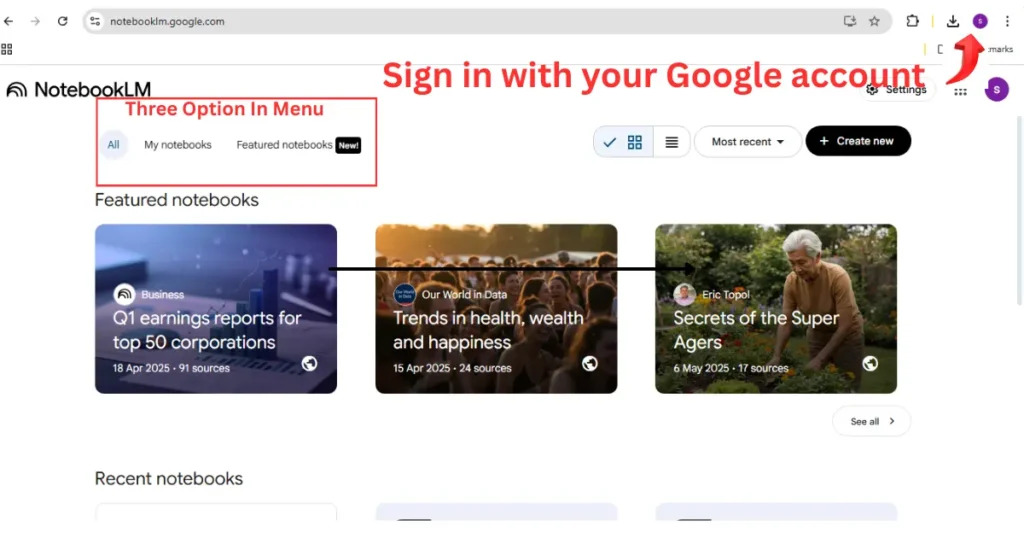
“NotebookLM’s simple interface works for students and pros alike! and login with your Google Account ”
Step 1: Getting Started with NotebookLM
Ready to make your work easier? Here’s how to set up NotebookLM:
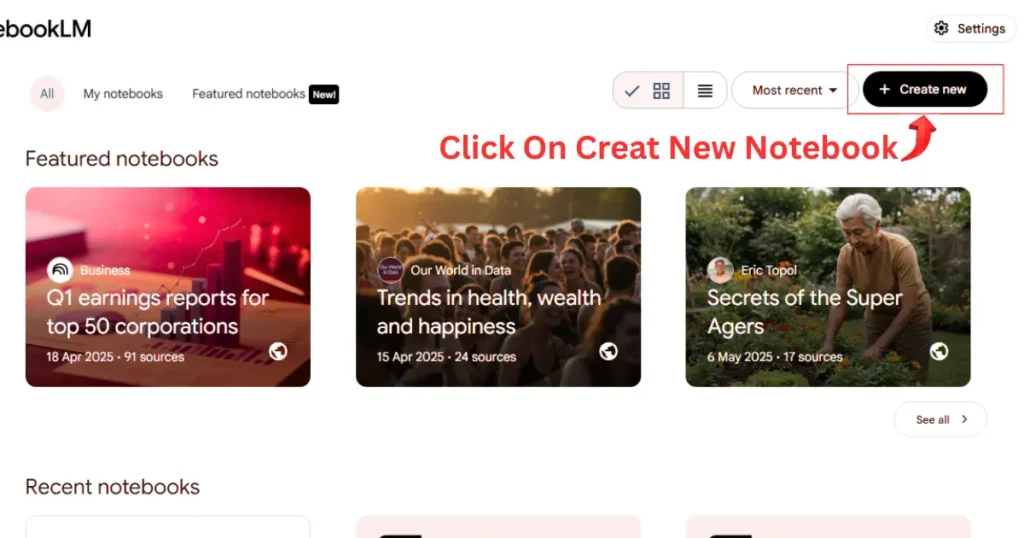
Create New Notebook: Start your project with one click—perfect for school or work!
- Sign In: Go to notebooklm.google.com and log in with your Google account. No fees, just your regular Gmail works.
- Create a Notebook: Click “New Notebook” and name it something like “Biology Exam Notes” (for students) or “Client Marketing Plan” (for pros).
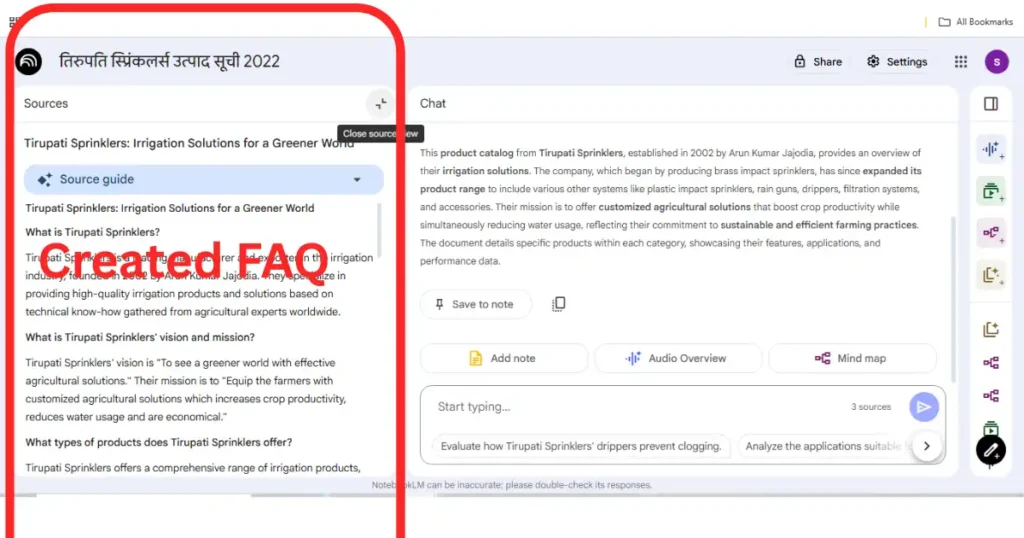
- Explore the Interface: You’ll see a sidebar for uploading sources, a chat area for asking questions, and a Studio panel for creating Audio Overviews, Video Overviews, Mind Maps, and Reports. It’s user-friendly, even if you’re not tech-savvy.
Pro Tip: Try the sample notebooks on the homepage to see how it works. They’re like a quick tutorial for students prepping for class or professionals organizing meeting notes.
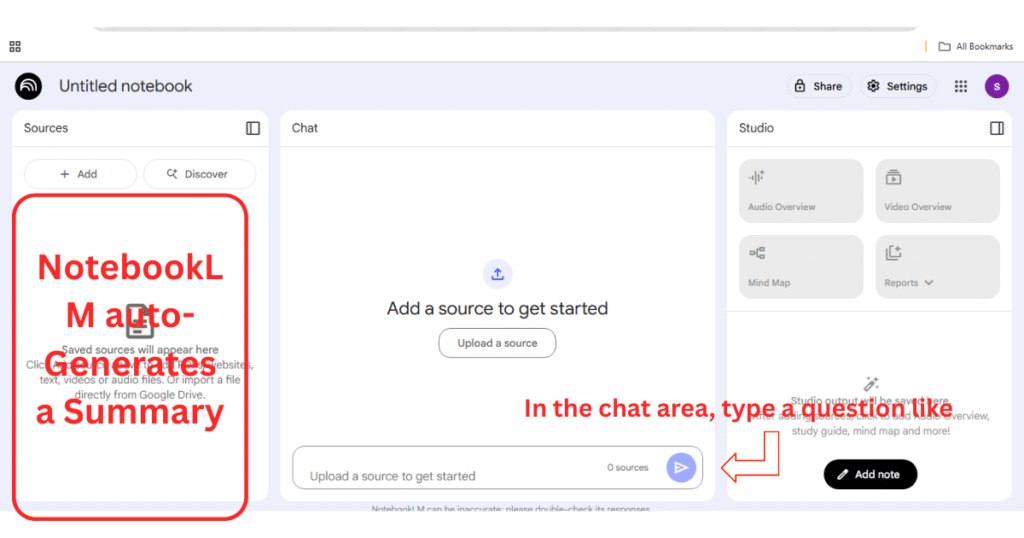
Explore the Interface: Uploading sources, a chat Area, Studio Panel
Step 2: Uploading and Managing Sources
Time to load up your materials. NotebookLM can handle up to 50 sources (PDFs, Google Docs, Slides, web URLs, or audio files) with a total of 25 million words. That’s enough for a semester’s worth of notes or a year’s worth of work reports!
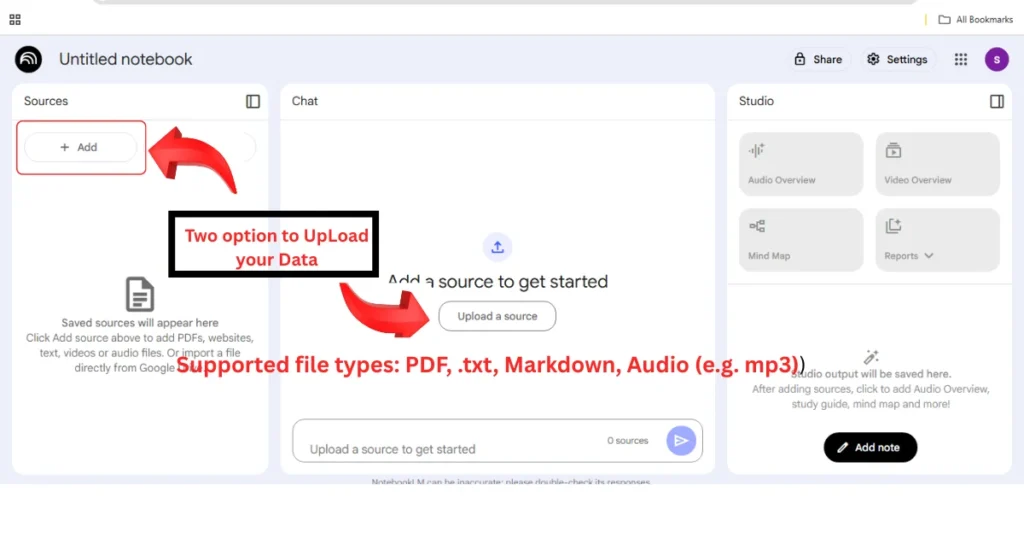
Upload your study notes or work documents—NotebookLM handles it all!
How to Upload Sources
- From Your Computer: Click “Add Source” in the sidebar and upload PDFs or text files (e.g., a textbook PDF for students or a project report for pros).
- From Google Drive: Link Google Docs or Slides from your Drive. Great for lecture notes or shared team documents.
- From the Web: Paste URLs for articles or YouTube videos. NotebookLM can summarize web pages or transcribe video audio.
- Audio Files: Got a recorded lecture or meeting? Upload it, and NotebookLM will create a transcript or summary.
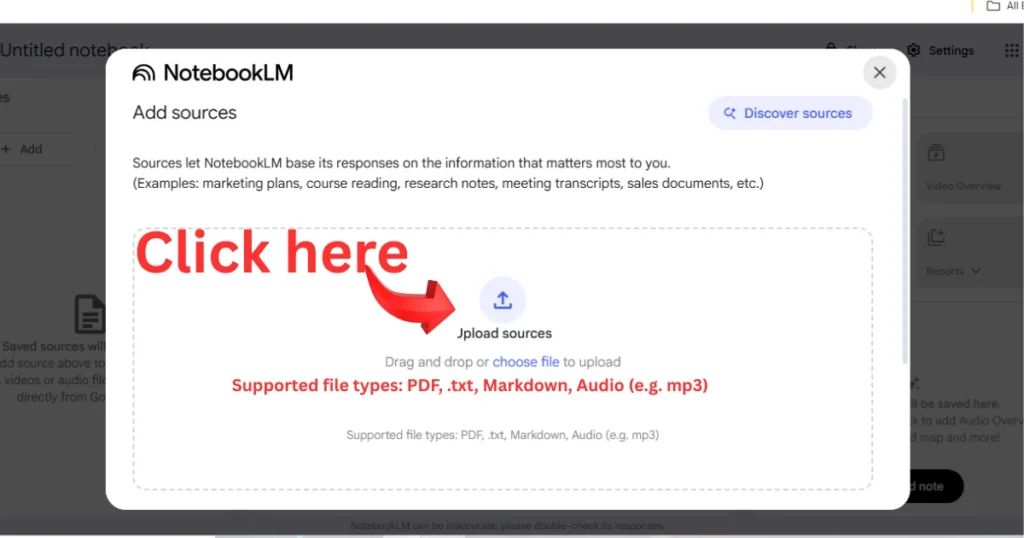
Open Upload Window And choose File To upload
Managing Sources
- NotebookLM auto-summarizes each source and tags key topics, visible in the sidebar.
- Stay organized by creating separate notebooks for different tasks (e.g., “English Lit” for students or “Q3 Sales Reports” for pros).
- Delete irrelevant sources from the sidebar to keep things tidy.
Question: Can NotebookLM summarize PDFs?
Yes! Upload a PDF, like a textbook chapter or a client proposal, and NotebookLM will generate a summary with key points and suggested questions. For example, a 20-page report gets boiled down to the main ideas in seconds.
Step 3: Asking Questions and Generating Summaries
NotebookLM is like having a tutor or colleague who’s read all your materials. You can ask questions or generate summaries to streamline studying or work tasks.
How to Ask Questions
- In the chat area, type something like, “What are the key points of this article?” or “Explain marketing funnels like I’m new to this.”
- Be specific for better results. Instead of “Tell me about biology,” try “Summarize the chapter on ecosystems from my textbook.” For pros, try “What are the main trends in my sales report?”
- Answers come from your sources only, with citations linking to exact passages for easy fact-checking.
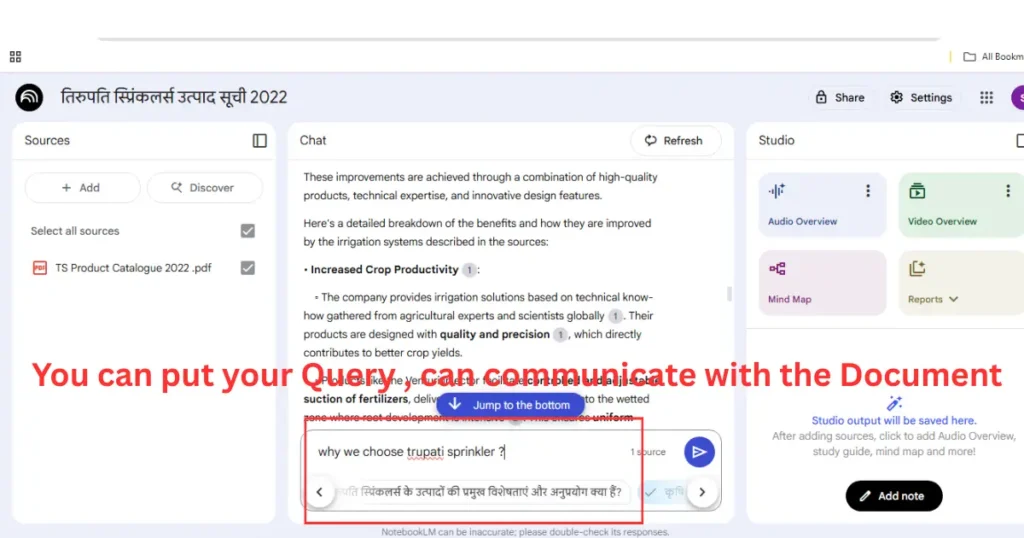
Ask questions and get answers with citations to your sources!
Generating Summaries
- Each source gets an auto-generated summary. You can also ask for custom ones, like, “Give me a one-paragraph summary of my lecture notes” or “Summarize my meeting notes.”
- For study guides or work briefs, click “Generate Study Guide” or “Briefing Doc” to get a structured breakdown with key points and terms.
Question: How can NotebookLM be used for academic or professional work?
For students, upload lecture slides and ask for a study guide for an exam. For example, a psychology student could upload a paper and ask, “Create a glossary of terms about cognition.”
For professionals, a teacher could upload lesson plans and ask, “Summarize key activities for my science class,” or a marketer could upload client data and ask, “What are the top insights from these reports?”
Four Magical Ai Enabled Features In Studio Panels
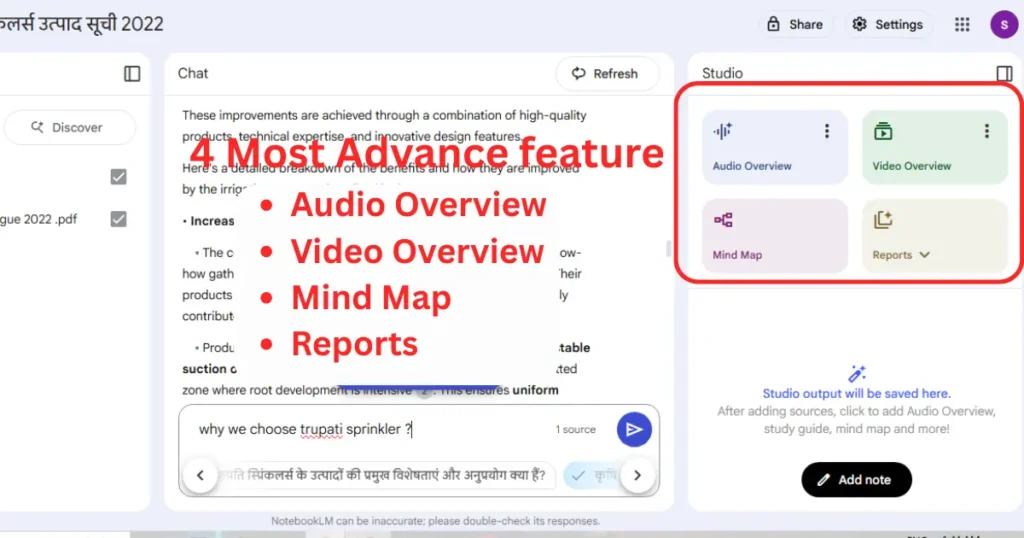
Step 4: Creating Audio Overviews
NotebookLM’s Audio Overview is a fan favorite—it turns your materials into a podcast-style conversation. It’s like two AI hosts discussing your notes while you relax.
How to Create an Audio Overview
- Upload your sources (e.g., lecture notes for students or meeting minutes for pros).
- In the Studio panel, click “Generate Audio Overview.”
- Wait a few minutes (longer for big files). You’ll get a downloadable audio file with two AI voices summarizing your content, making connections, and adding some fun banter.
- Listen while commuting, prepping for class, or reviewing work notes.
- Go to Setting Gear Icon to choose your desire language ,There are 82 international language available in audio overview
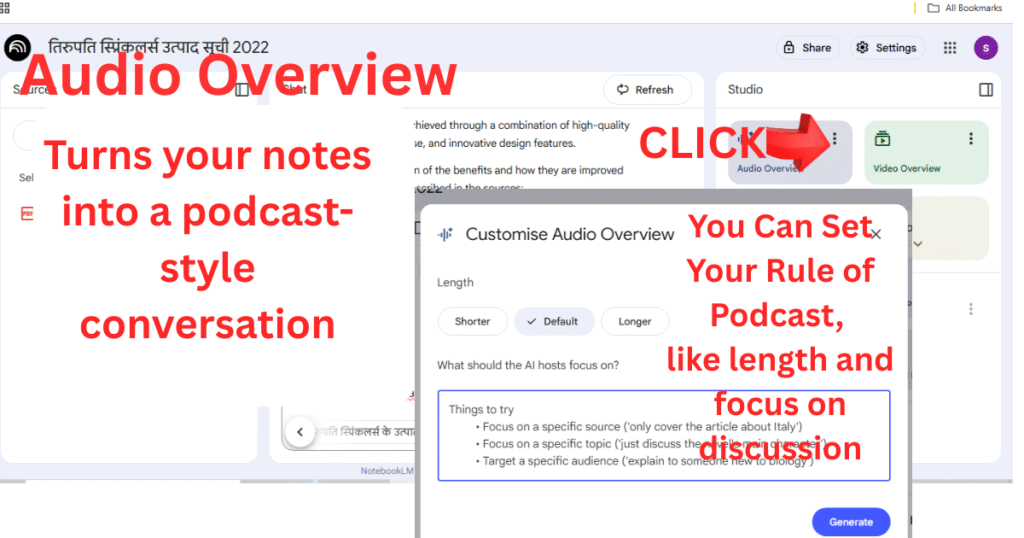
Turn your notes into a podcast for studying or work prep
Tips for Better Audio
- Customize the Focus: Ask NotebookLM to focus on specific topics, like “Summarize the key events of the Civil War” or “Highlight action items from my meeting.”
- Reduce Filler Words: If the audio feels chatty (e.g., too many “likes”), use a prompt like, “Summarize in a clear, professional tone.”
- Check Accuracy: Since it’s experimental, listen to ensure it captures the main points.
Question: How can I improve the audio overview feature?
For smoother audio, use fewer sources or specify a tone, like “Make it sound like a professional briefing.” You can also edit source text before generating to cut redundant parts.
Step 5: Creating Video Overviews
Launched in July 2025, Video Overviews turn your sources into narrated slideshows with visuals. It’s like getting a custom YouTube explainer video for your notes or reports!
How to Create a Video Overview
- Upload your sources (e.g., a textbook PDF, a YouTube video, or a project brief).
- In the Studio panel, click “Generate Video Overview” (available on desktop, English only for now).
- Wait a few minutes for NotebookLM to create a short video with slides, images, quotes, and diagrams from your sources, narrated by an AI host.
- Download or view the video in the Studio panel to study or present.
- Only US English language available in video overview till Google Next Update.
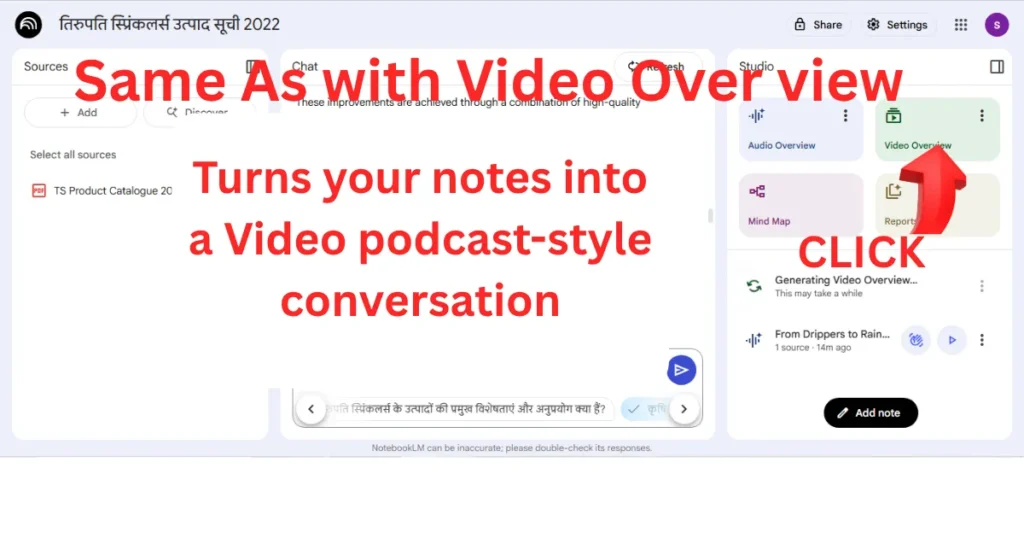
Sample Video : Generated by Video Overview ,Watch your notes or reports come to life as a narrated slideshow
Tips for Better Videos
- Set Your Goals: Customize with prompts like, “Explain supply chain basics for beginners” (for pros) or “Show key biology concepts” (for students).
- Highlight Key Areas: Ask NotebookLM to focus on specifics, like “Show charts from my sales data” or “Visualize the water cycle.”
- Multitask: Play the video while working on other features, like a Mind Map, for a combo session.
Why It’s Great: Videos are perfect for visual learners. Students can watch a biology process explained with diagrams, while professionals like marketers can see client data visualized in slides.
Step 6: Creating Mind Maps
Mind Maps, added in March 2025, are awesome for seeing how ideas connect. They turn your sources into interactive, branching diagrams, like a visual map of your thoughts.
How to Create a Mind Map
- Open a notebook and upload your sources (e.g., lecture notes or project plans).
- In the Studio panel, click “Mind Map.”
- NotebookLM generates a visual map with a central topic (e.g., your notebook’s theme) and branches for key ideas and subtopics.
- Explore by zooming, scrolling, or clicking nodes to expand/collapse branches or ask questions about specific topics.
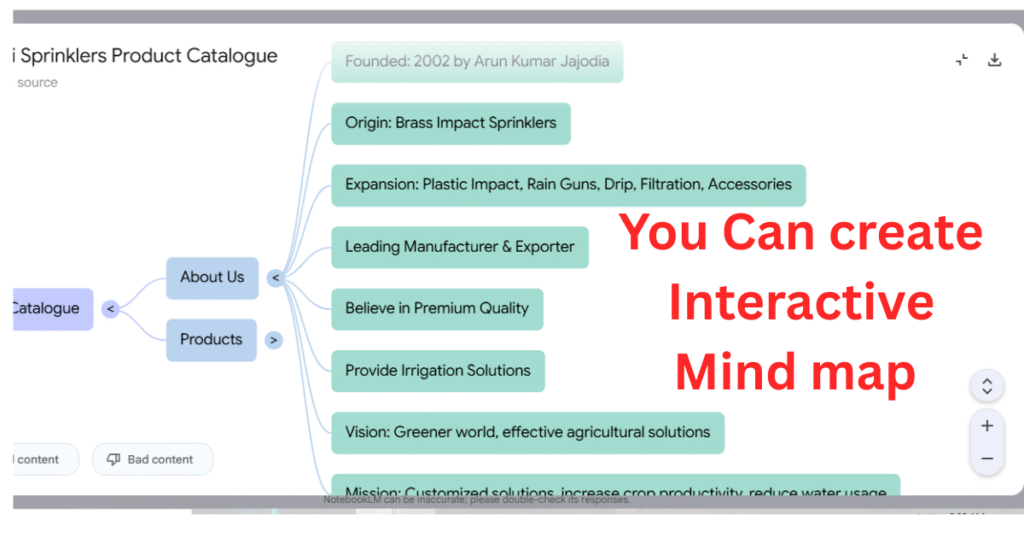
See how your ideas connect with an interactive Mind Map
Tips for Better Mind Maps
- Dive Deeper: Click a node (e.g., “Marketing Strategy”) to get a summary or ask, “Explain this in simple terms.”
- Share or Save: Download the map as a PNG or share the notebook with classmates or colleagues.
- Refine Sources: Use clear, focused sources for cleaner maps. Too many sources can make it cluttered.
Question: How are you using NotebookLM for personal projects?
Students can upload history notes and map how events like “World War I” connect to “Treaty of Versailles.” Professionals like writers can map out book chapters or marketers can visualize campaign ideas.
Step 7: Creating Reports
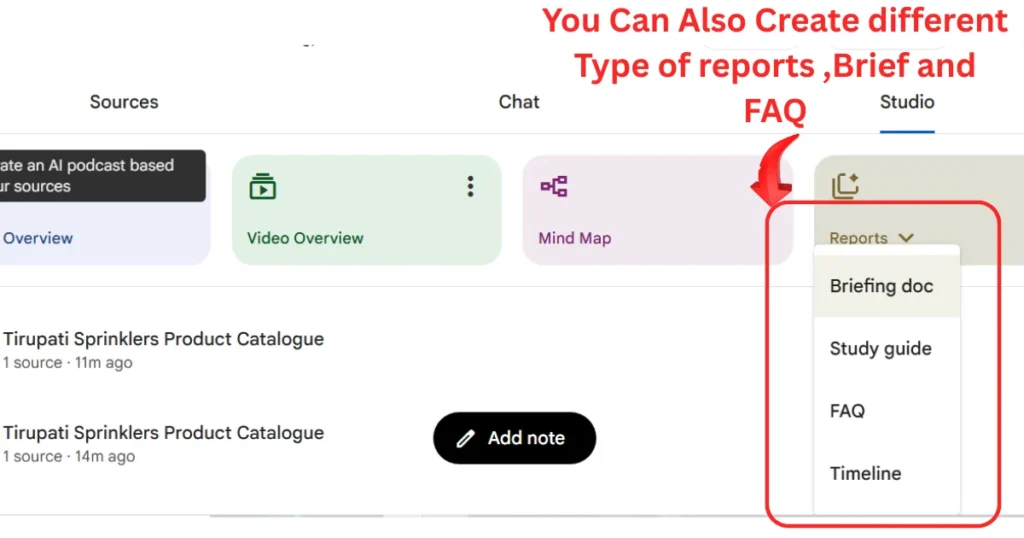
NotebookLM’s Reports feature creates structured documents from your sources, perfect for essays, lesson plans, or work presentations. It’s like having an AI draft your work for you.
How to Create a Report
- Upload your sources to a notebook.
- In the Studio panel, select “Generate Report.”
- Choose a report type (e.g., briefing doc, study guide, or custom report) and customize with prompts like, “Create a report on renewable energy trends” or “Write a lesson plan for algebra.”
- NotebookLM compiles a document with sections, headings, and citations, ready to download or edit.
Tips for Better Reports
- Be Specific: Use prompts like, “Write a 500-word report on social media trends” (for pros) or “Summarize key themes for my literature essay” (for students).
- Combine Sources: Mix PDFs, web articles, and notes for a comprehensive report.
- Verify Accuracy: Double-check facts and citations before using the report for class or work.
Get a polished report for school or work in minutes!
Why It’s Useful: Students can get a head start on essays, while professionals like teachers can create lesson plans or marketers can draft client reports in minutes.
Step 8: Real-World Use Cases for Students and Professionals
NotebookLM is a Use full for both Student and working professionals. Here are some practical ways to use it:

NotebookLM powers your schoolwork and professional tasks!
- Students:
- Exam Prep: Upload lecture slides and generate a study guide or Mind Map for your chemistry exam.
- Research Projects: Upload articles and ask, “What are the common themes?” to start your history essay. Create a Report for a polished draft.
- Creative Writing: Upload your story draft and use a Mind Map to organize plot twists or ask, “Suggest ideas for my sci-fi novel.”
- Non-Tech Professionals:
- Teachers: Upload curriculum guides and generate a Report for a lesson plan or a Video Overview to share with students.
- Writers: Upload research notes and create a Mind Map to organize book chapters or an Audio Overview to brainstorm ideas.
- Marketers: Upload client data and generate a Report on campaign performance or a Video Overview to present to your team.
- Project Managers: Upload meeting notes and ask, “What are the next steps?” or create a Mind Map to track project tasks.
Question: How are you using NotebookLM for personal projects?
Students can upload D&D campaign notes and generate a Mind Map to track characters and quests. Professionals like writers can map out article ideas, or marketers can create an Audio Overview of client feedback to share with their team.
Step 9: Overcoming NotebookLM’s Limitations
NotebookLM is fantastic, but it’s still experimental. Here’s how to work around its limits:
- No Web Search: Can NotebookLM search the web? Not directly, but the “Discover Sources” feature (added in 2025) lets you add web URLs manually. Pair it with a tool like Perplexity for broader research.
- Source Limits: The free plan allows 50 sources per notebook. For big projects, split into multiple notebooks or upgrade to the Plus plan (300 sources).
- No API: Is there an API for NotebookLM? Not yet. You’ll need to manually copy outputs for now.
- Feature Quirks: Audio and Video Overviews take time for large files, and Mind Maps can get cluttered with too many sources. Use focused sources for smoother results.
Workaround Tip: For huge datasets (e.g., hours of meeting audio or a semester’s notes), break them into smaller chunks and upload to separate notebooks.
Conclusion: Make NotebookLM Your School or Work Superpower
NotebookLM is like a personal assistant for students and non-tech pros alike. Whether you’re summarizing PDFs, listening to an Audio Overview, watching a Video Overview, mapping ideas with Mind Maps, or drafting Reports, it makes your work faster and more manageable. Create an “Everything Notebook” for random notes or specific ones for classes or projects. Experiment with all the features and share notebooks with classmates or colleagues.
“Now it’s assignment time: You can upload this article’s URL as a source in NotebookLM to create an audio overview, video summary, and generate FAQs or Mind Map and Briefings.”
Also Learn
मुफ्त चैटबॉट कैसे बनाएं – 15 मिनट में ChatGPT जैसा AI चैटबॉट बनाना सीखें और लाखों कमाए